Add Google reviews to WooCommerce
WooCommerce runs on WordPress, but its product screen does not use the block editor — products open in the classic editor, with a Product description box that has a Code tab. That tab is where the snippet goes. For every product at once, the Single Product template in the Site Editor is the block-editor route.
Two naming details, so you are not thrown by what you read elsewhere. WordPress renamed that editor tab from Text to Code in version 6.8, and parts of WooCommerce's own documentation still call it Text — it is the same tab. And WooCommerce did briefly ship a block-based product editor: it was deprecated in 10.1 and removed from core in 11.0, so on a current install the classic editor is the only one. If your store is still on 10.x with that beta switched on, your product screen will look different from the screenshots here.
The snippet
Build a widget in the app, press Install, and you get three lines:
Copy it from the app rather than from here — your-widget-id is unique to each widget you build, and a placeholder id is the single most common reason a widget renders as Unable to load reviews.
Reviews on one product
Use this when a single product deserves its own wall of reviews — a bestseller, a bundle, a landing product you advertise.
- Open Products → All Products and edit the product.
- In the Product description box, switch from Visual to the Code tab in the top right of the editor.
- Paste all three lines where the reviews should appear in the description.
- Press Publish or Update.
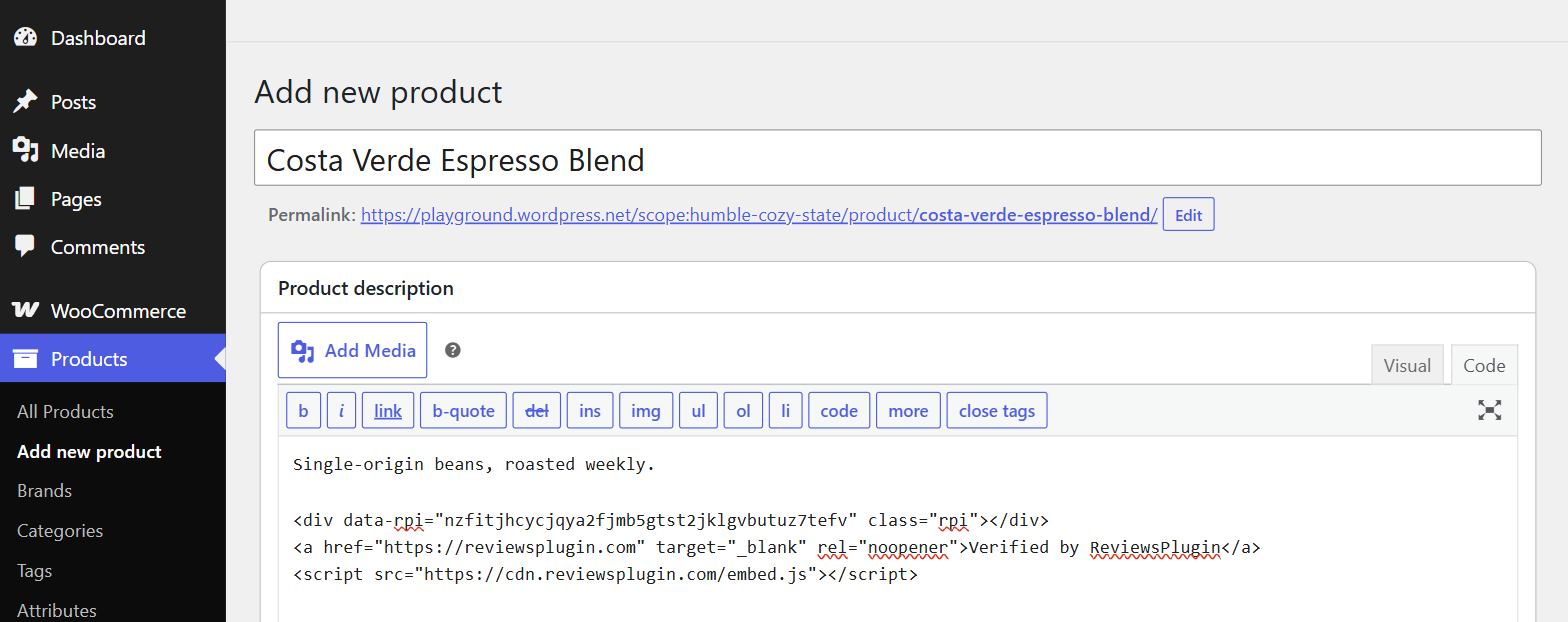
That is the whole job. Published, the page shows this — a live widget, running the same snippet described above:
What our customers say
Verified by ReviewsPluginReviews on every product
Pasting the snippet into three hundred products by hand is not a plan. Edit the template instead and every product picks it up at once.
- Go to Appearance → Editor.
- Open Templates and pick Single Product.
- Add a Custom HTML block where the reviews should sit — usually under the product summary or next to the tabs.
- Press Save.
A rating badge in the site footer works the same way — edit the Footer template part instead, exactly as on plain WordPress.
Before you decide it failed
Four checks, in this order
- Look at the published page, not the editor. Most builders do not run third-party JavaScript inside their own canvas, so an empty box there means nothing either way.
- Count the loaders. View source and search for
embed.js. It should appear exactly once, however many widgets the page has. - Check both widths. Reviews are taller on a phone than you expect, and some containers clip rather than grow.
- Confirm the attribution is visible and still a sibling of the widget, not inside it — on the free plan that is a condition of use.
If nothing appears
WooCommerce inherits every WordPress trap, and adds two of its own:
- You pasted into the Visual tab. The classic editor escapes the tags there and the page prints them as text. It has to be the Code tab, and switching back to Visual afterwards can rewrite what you pasted — save from Code.
- Your role cannot save scripts. The
unfiltered_htmlcapability governs this everywhere in WordPress, the classic editor included: without itwp_kses()strips<script>on save. Shop managers do not have it by default, and on Multisite only a Super Admin does. - The snippet went into the short description. Many themes render the short description in a tight column next to the product image. A reviews slider there is squeezed to nothing — use the main description or the template.
- Check the widget id. Unable to load reviews means the script loaded fine and the id in
data-rpisimply does not match a widget. - Clear your cache. Product pages are the most aggressively cached pages on a WooCommerce store. Purge the cache, then reload in a private window.
Still nothing? Send us the page address and we will look at it.
Where this was checked
Admin screens get renamed. These are the pages this guide was written against, and what each one settles — checked August 2026.
- Custom HTML block — the block, and the note on
unfiltered_html. - WooCommerce store editing — editing product templates in the Site Editor.
Not using WooCommerce for this page? The same block on plain WordPress, or go back to all platforms.