Add Google reviews to PrestaShop
PrestaShop takes the snippet through the source view of its content editor. It is the one platform here with no built-in field for site-wide code, so a badge on every page means either a small theme override or an HTML block module.
The snippet
Build a widget in the app, press Install, and you get three lines:
Copy it from the app rather than from here — your-widget-id is unique to each widget you build, and a placeholder id is the single most common reason a widget renders as Unable to load reviews.
Reviews on one page
A CMS page — About, Testimonials, or any static page in your store.
- Go to Design → Pages and edit the page, or press Add new page.
- In the Page content editor, open the source view with the
</>button. - Paste all three lines where the reviews should appear.
- Save, then check the page on the storefront rather than in the editor.
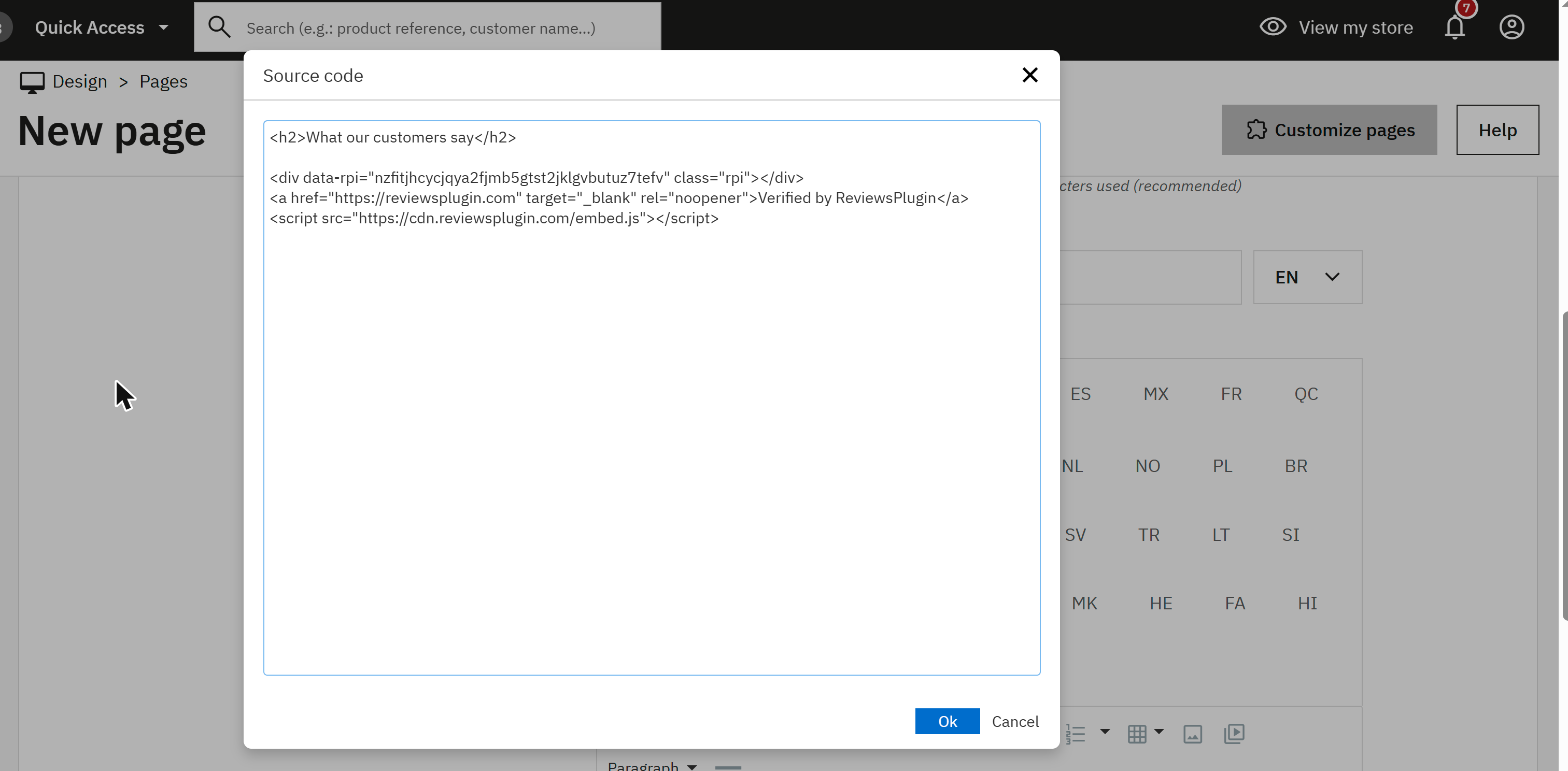
</> button in the Page content toolbar. Typing into the rich editor instead lets TinyMCE rewrite the tags.
Know the limits of this route before you rely on it. A CMS page is one page, and the editor's filtering is outside your control — a PrestaShop upgrade or a different editor module can start stripping what it accepted yesterday. It is the right answer for a testimonials page you own; it is not a substitute for the module or child-theme route below when the widget has to survive upgrades or appear in several places.
That is the whole job. Published, the page shows this — a live widget, running the same snippet described above:
What our customers say
Verified by ReviewsPluginA badge on every page
PrestaShop has no Code Injection screen. Two honest routes, in order of how much you want to touch:
- Install a static HTML block module from the marketplace, and hook it to
displayFooter. No files touched, and it survives upgrades. - Or create a child theme and override
templates/_partials/footer.tpl, pasting the badge snippet before the closing tag. - Either way, clear the cache under Advanced Parameters → Performance afterwards.
Before you decide it failed
Four checks, in this order
- Look at the published page, not the editor. Most builders do not run third-party JavaScript inside their own canvas, so an empty box there means nothing either way.
- Count the loaders. View source and search for
embed.js. It should appear exactly once, however many widgets the page has. - Check both widths. Reviews are taller on a phone than you expect, and some containers clip rather than grow.
- Confirm the attribution is visible and still a sibling of the widget, not inside it — on the free plan that is a condition of use.
If nothing appears
PrestaShop has two layers that eat markup and one that hides it:
- TinyMCE rewrote the snippet. The rich editor strips or escapes tags it does not expect. Always use the
</>source view, and check by reopening the page after saving. - Smarty cache. Advanced Parameters → Performance, clear the cache. Template changes do not appear until you do.
- You edited the parent theme. The next update overwrites it. Use a child theme.
- Check the widget id. Unable to load reviews means the script ran and the id in
data-rpidoes not match a widget.
Still nothing? Send us the page address and we will look at it.
Where this was checked
Admin screens get renamed. These are the pages this guide was written against, and what each one settles — checked August 2026.
- Templates and layouts — where the footer partial lives.
- Theme development — child themes.
Selling on another platform? Magento, WooCommerce, or go back to all platforms.