Add Google reviews to Wix
Wix takes the snippet through an embed element. Two things to know going in. Wix now ships three editors — the classic Wix Editor, Wix Studio and the newer Harmony editor, which is what a brand new account gets — and the menu path differs in each. And whichever you use, Wix renders embedded HTML inside a frame of its own, so the widget is boxed at whatever size you drag and will not inherit the fonts of the page around it.
The snippet
Build a widget in the app, press Install, and you get three lines:
Copy it from the app rather than from here — your-widget-id is unique to each widget you build, and a placeholder id is the single most common reason a widget renders as Unable to load reviews.
Reviews on one page
Check which editor you are in first — the name is in the top bar. Below is the classic Wix Editor; the Harmony path follows underneath it.
- Press Add Elements on the left of the editor.
- Choose Embed Code, then Popular Embeds, then Embed HTML.
- Click the element to place it, then press Enter Code.
- Paste all three lines under Add your code here and press Apply.
- Drag the frame to size. Reviews are as tall as their content, so give it room.
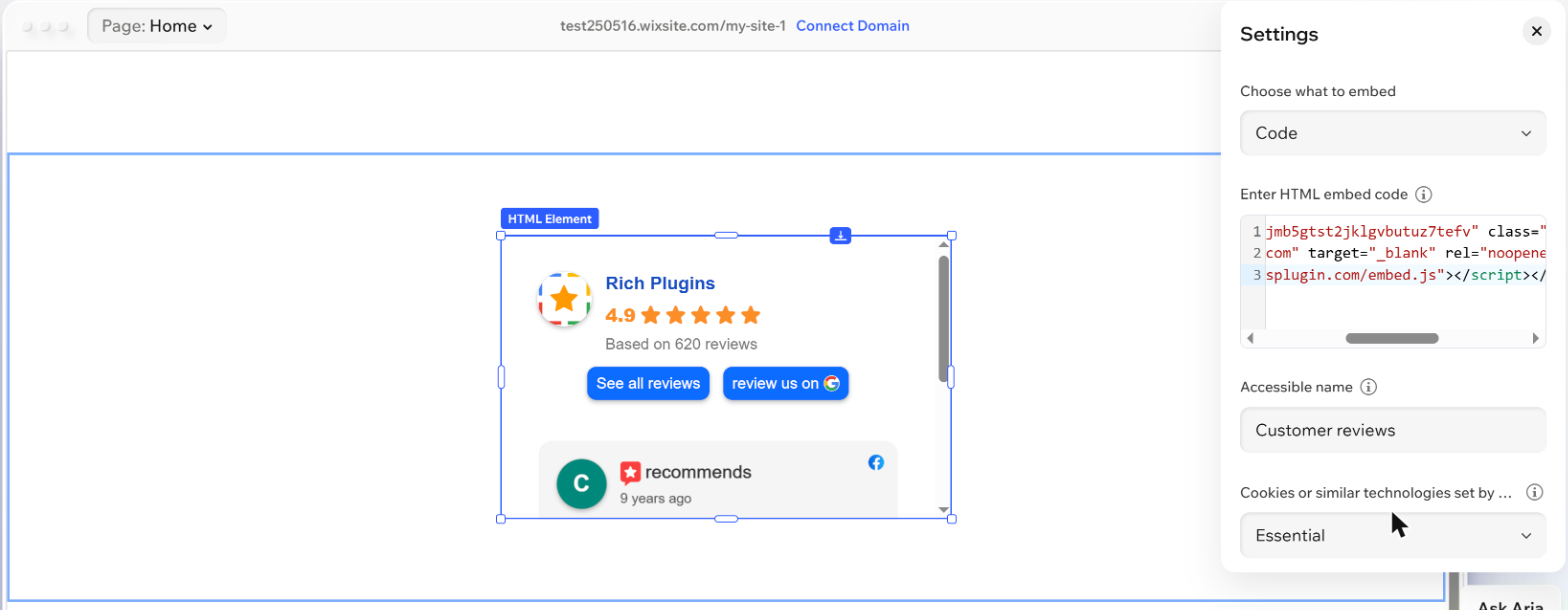
The screenshot above is the Harmony editor, which is what a new Wix account gets today, and its path is different: press + Add at the top left, then Elements, and search for embed — that is faster than hunting through More Options → Embed. Pick Embed code, the one described as Display content using HTML code, rather than Embed a site. Once placed, the element is labelled HTML Element; press the Settings gear on its action bar, paste the snippet under Enter HTML embed code and press Apply. Harmony additionally asks for an Accessible name — a short description read out by screen readers, Customer reviews does the job — and for a cookie category. Our snippet sets no cookies of its own, so Essential is the honest answer; check your own cookie policy if you are unsure.
That is the whole job. Published, the page shows this — a live widget, running the same snippet described above:
What our customers say
Verified by ReviewsPluginA badge on every page
Wix has a site-wide Custom Code panel, but it is built for invisible tracking scripts — Wix documents those snippets as not visible to visitors. For a badge you want people to see, keep using the embed element and tell Wix to repeat it.
- Add the embed element and paste your badge snippet, exactly as above.
- Right-click the element and turn on Show on All Pages. Wix now repeats it across the site rather than on the one page.
- Right-click again and choose Pin to Screen, then pick a corner and the offsets. This is what makes a badge float rather than sit in the page flow.
- Publish, then check a few different pages.
The alternative, Settings → Custom Code, is the wrong tool here and has conditions worth knowing anyway: a Premium plan, a connected domain, and no Wix ads. Snippets there are tied to that domain and are deleted if you assign a different one — and, by Wix's own description, they are meant to be invisible to visitors.
Before you decide it failed
Four checks, in this order
- Look at the published page, not the editor. Most builders do not run third-party JavaScript inside their own canvas, so an empty box there means nothing either way.
- Count the loaders. View source and search for
embed.js. It should appear exactly once, however many widgets the page has. - Check both widths. Reviews are taller on a phone than you expect, and some containers clip rather than grow.
- Confirm the attribution is visible and still a sibling of the widget, not inside it — on the free plan that is a condition of use.
If nothing appears
Almost every Wix problem is the frame rather than the snippet:
- The widget is cropped and the frame has its own scrollbar. Wix embeds run in a fixed-size iframe and there is no fit to content setting — we looked. Drag the frame taller and leave room; a wall of long reviews is taller than you expect. Wix's own advice about replacing pixel sizes with
100%is about making embedded content fill the frame, which does not help here: our snippet declares no dimensions of its own. - It looks like a different website. It is — the embed is a separate document, so your page fonts and colours do not reach inside it. Set the widget's own font and colours in the builder so it matches.
- Nothing shows in the editor. Embeds frequently render only on the published site. Publish and check there before assuming it failed.
- Check the widget id. Unable to load reviews means the script ran and the id in
data-rpidoes not match a widget.
Still nothing? Send us the page address and we will look at it.
Where this was checked
Admin screens get renamed. These are the pages this guide was written against, and what each one settles — checked August 2026.
- Embedding a site or a widget — the Embed HTML element, and the statement that embeds are iframes and not automatically responsive.
- Harmony editor: embedding a link or HTML code — the newer editor's path, the Accessible name field and the cookie category.
- Showing an element on all pages — what makes one embed repeat site-wide.
- Pinning elements to the screen — what makes a badge float in a corner.
- Embedding custom code — the site-wide panel, and why it is for snippets that render nothing.
On a different builder? Squarespace, Webflow, or go back to all platforms.